QR code labels and placards can be attached to devices and systems around the home. Scanning the code with a phone opens the documentation page for that device or system directly.
Two formats are supported:
- Sticky labels — printed on the Brother QL-700 label printer in the Lab, on DK-1201 tape. Intended for devices indoors.
- 3D printed placards — generated as dual-color 3MF files for the Bambu 3D printer. Intended for outdoor use or anywhere a more durable label is needed.
Both are generated from the same Python script. What gets generated depends on the labelType property in the note’s front matter.
Scanning a QR Code
Open the camera app on your phone and point it at the QR code so the entire code fills a significant portion of the frame. When the code is recognised, yellow corner markers appear and a button shows at the bottom of the viewfinder. Tap it to open the documentation page in your browser.
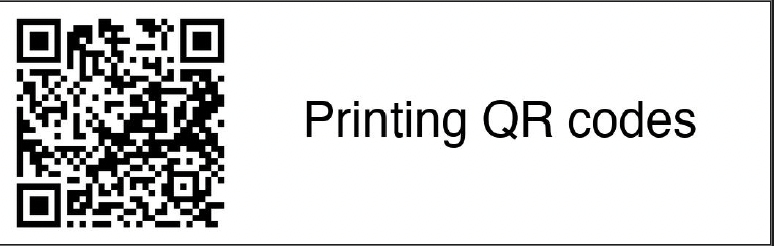
The QR code below links to this page. Give it a try.
Printing a Label or Placard
From Obsidian (easiest)
The Shell Commands community plugin is configured with a single command. Open any device note, open the command palette (Cmd+P), type print, and select Print QR code label for this note. It confirms before executing and prints immediately to the QL-700.
The command runs:
cd /Users/tim/projects/git/home-mgmt && /opt/homebrew/bin/uv run doc/tools/labels/print-labels.py --note {{file_path:relative}} --print
Output is shown as an Obsidian notification.
From the terminal
Run from the repo root. Requires uv — brew install uv if not already installed.
# Print label for a single note
uv run doc/tools/labels/print-labels.py --note "50-Devices/Home Network/UDM.md" --print

# Preview PDF without printing
uv run doc/tools/labels/print-labels.py
open tmp/labels/labels.pdf

# Print all labelable notes
uv run doc/tools/labels/print-labels.py --print

# Print only notes under a subtree
uv run doc/tools/labels/print-labels.py --filter "50-Devices/Home Network" --print

# See all notes that would be labelled and their types
uv run doc/tools/labels/print-labels.py --list
Output goes to tmp/labels/ at the repo root (gitignored).
Label Types
Label type is resolved per note via inheritance:
- Note’s own
labelType:front matter — highest priority - Nearest ancestor
index.mdwithlabelType: - No global default — notes with no resolvable type are silently skipped
index.md files are never printed; they exist solely to set the default for their subtree. 50-Devices/index.md sets labelType: qr-device, so every device note inherits it automatically.
| Type | Format | Tape | Brother ID |
|---|---|---|---|
qr-device | QR code left, device name right | DK-1201 (1.1” × 3.5”) | 29x90 |
text-only | Name centered, no QR | DK-1209 (0.66” × 3.4”) | 17x54 |
3d-qr | QR embossed on base; optional text band | — | — |
none | Skip this note | — | — |
Optional front matter on any note:
labelType: text-only        # override inherited type
labelNote: "short subtitle" # printed below the device name
3D Printing a Placard
Generating the file
Add labelType: 3d-qr to the note’s front matter, then run the script. A .3mf file is written to tmp/labels/.
Optionally add a text band above the QR code:
labelText: "Solar" # short label printed above the QR codeOpening in BambuStudio
Open the .3mf file in BambuStudio. You will immediately see this dialog:
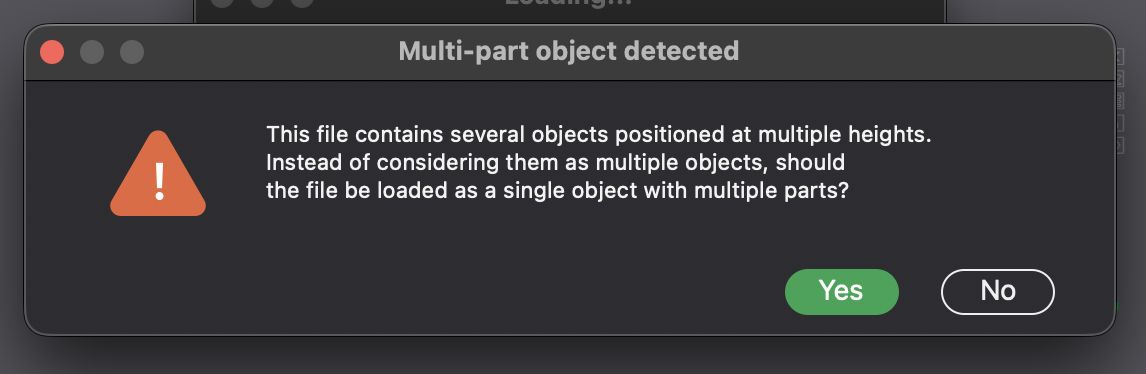
Click Yes. The file contains two objects at different heights — a white base plate and a black QR layer on top. Saying Yes loads them as a single multi-part object and keeps the dual-color filament assignments intact. Saying No would separate them and lose those assignments.
After clicking Yes, verify in the objects panel that the base is assigned to the white filament and the QR layer to black, then slice and print normally.
Filament setup
| Extruder | Color | Prints |
|---|---|---|
| Extruder 1 | Black | QR modules and text |
| Extruder 2 | White | Base plate |
ASA is recommended for outdoor placards.
Tooling Reference
| File | Purpose |
|---|---|
doc/tools/labels/print-labels.py | Generation and print script (uv inline-deps) |
doc/tools/labels/label-types.yaml | Label type definitions and dimensions |
tmp/labels/ | Generated output — gitignored, ephemeral |
Hardware: Brother QL-700 (USB), standard stock DK-1201, small stock DK-1209.